Updating Spin Bridge
Note
Updating the Spin Bridge can take a significant amount of time. Depending on the size of the update and the quality of the internet connection an update can take anywhere from a minute to several hours.
Warning
Updating may cause stored data to be lost!
The Spin Bridge software versions follow a <major>.<minor>.<patch> version.
Stored results from previous insertions may be deleted by any update (major, minor, patch).
Stored programs may only be deleted by a major update. A program is guaranteed not to be deleted by minor and patch updates, but may be modified in ways that maintain the overall behavior of the program.
Stored settings may only be reset by a major update.
Refer to the release notes to see whether any specific update deletes data.
Updating Spin Bridge
Plug the Spin Bridge in to power.
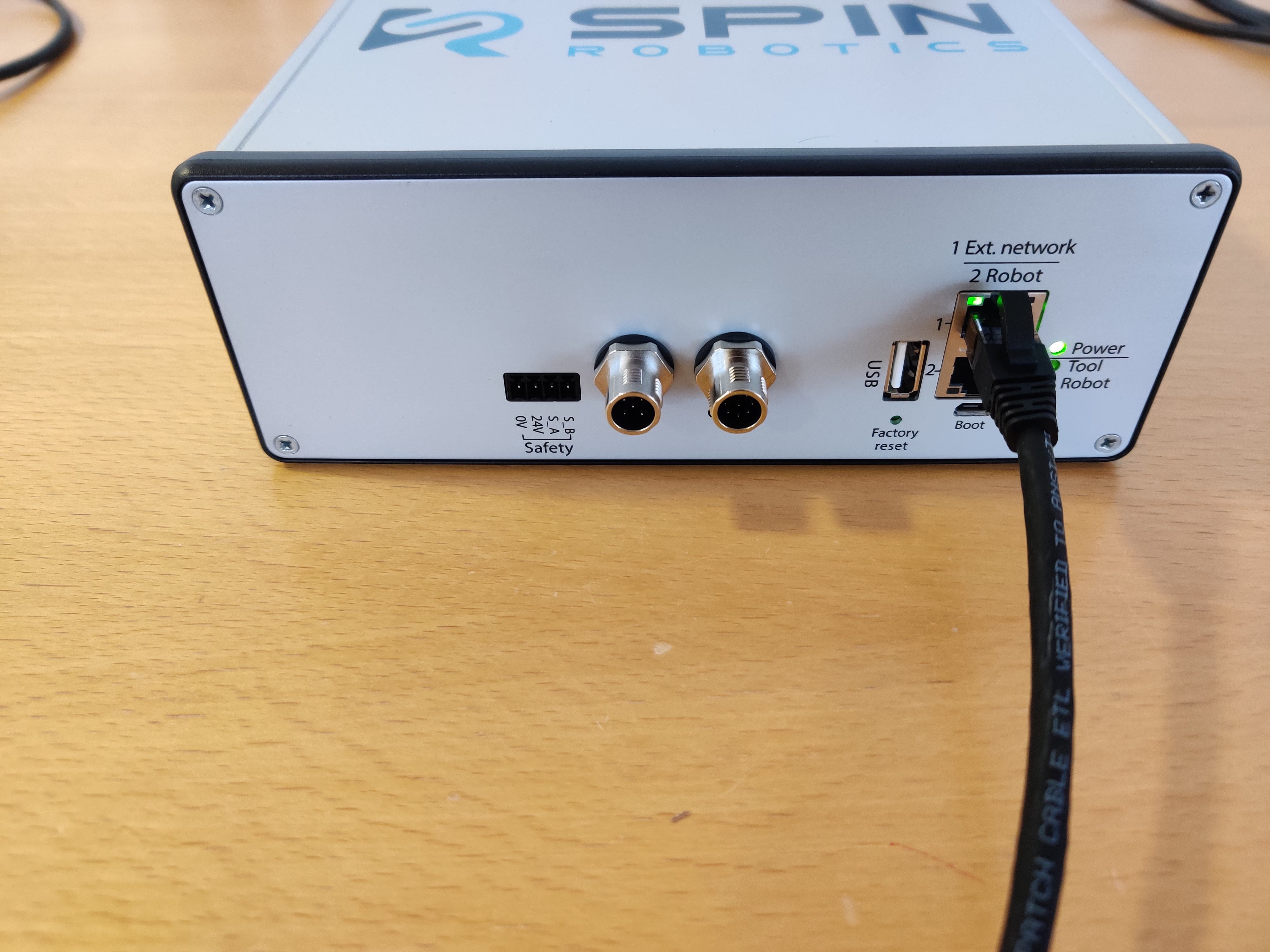
Unplug any ethernet cable in the 2 Robot port.
Plug the Spin Bridge in to an external network with internet acces using the 1 Ext. network port. No tool needs to be connected.
Connect a laptop to the wifi hotspot SpinBridge-xxxx as normal and navigate to the Spin Dashboard 10.42.0.1/
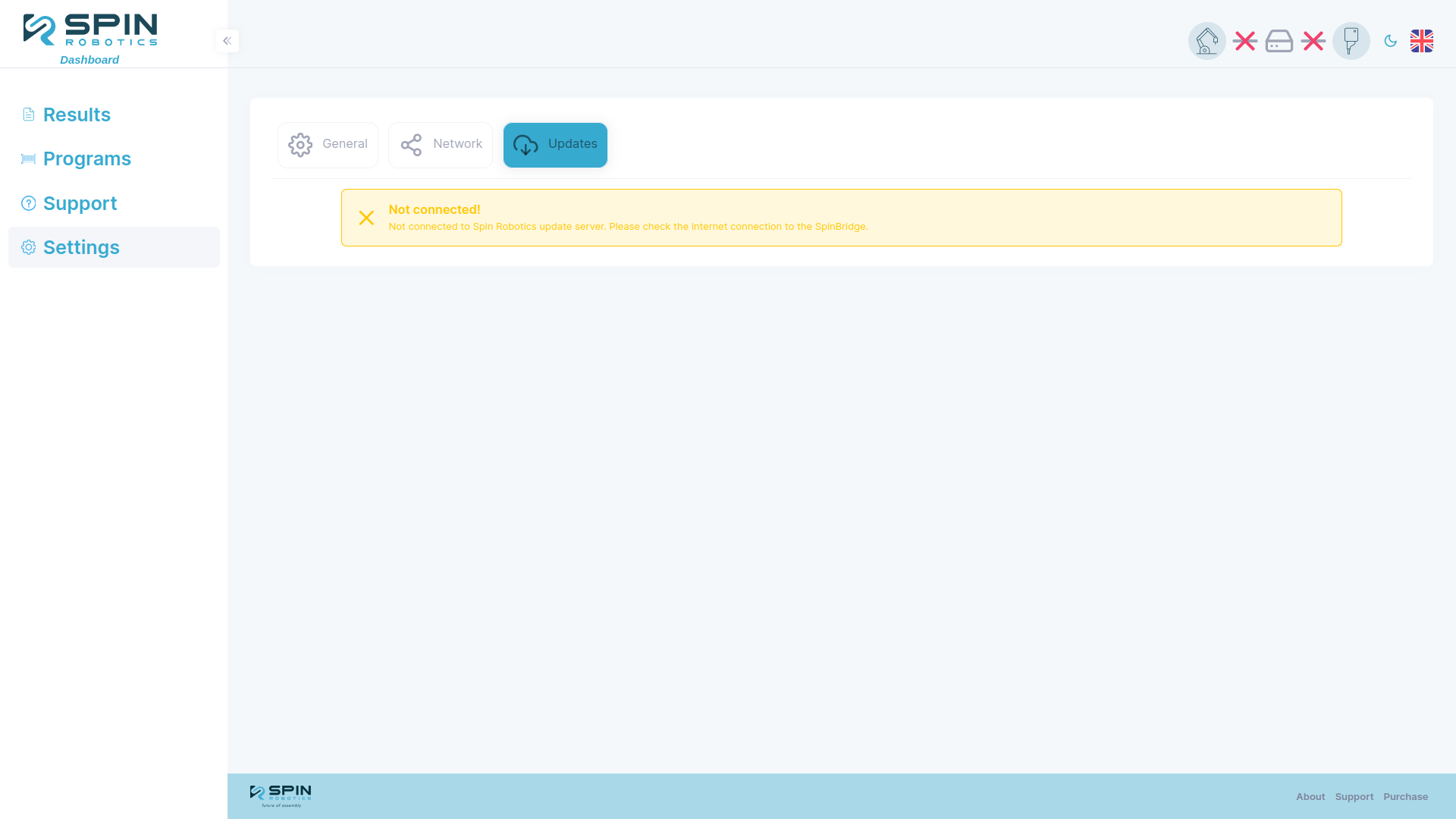
If you are unsure if the Spin Bridge is connected to the internet you can check the status of the connection on the update page where the internet connection is shown as Connected! in green or Not connected! in yellow.
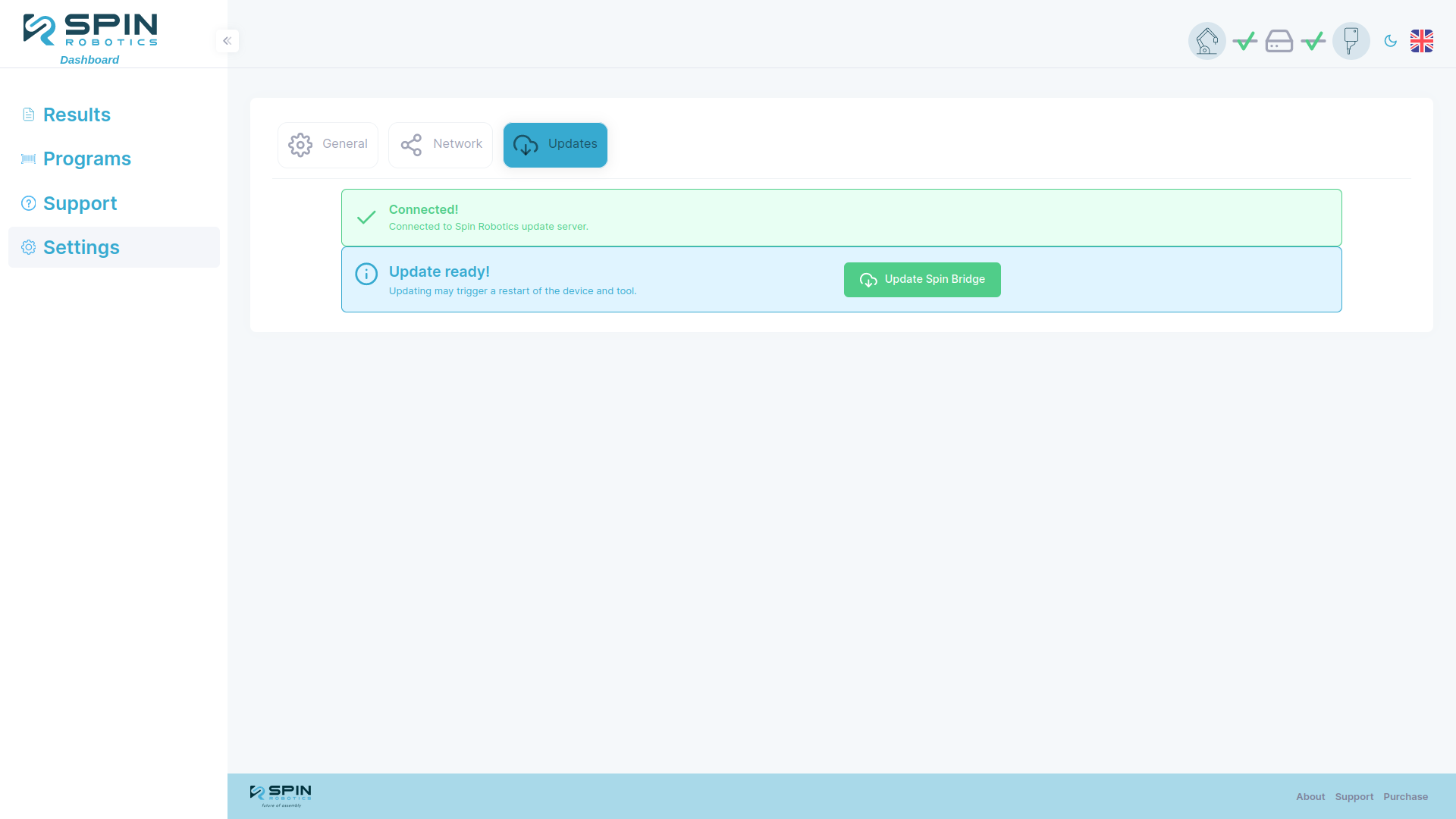
On the Spin Dashboard navigate to Setting/Updates and click the “update spin bridge” button. If you don’t see the button then the Spin Bridge either don’t have internet connection or there is no update avalible (see changelog ), the page may look different depending on version.
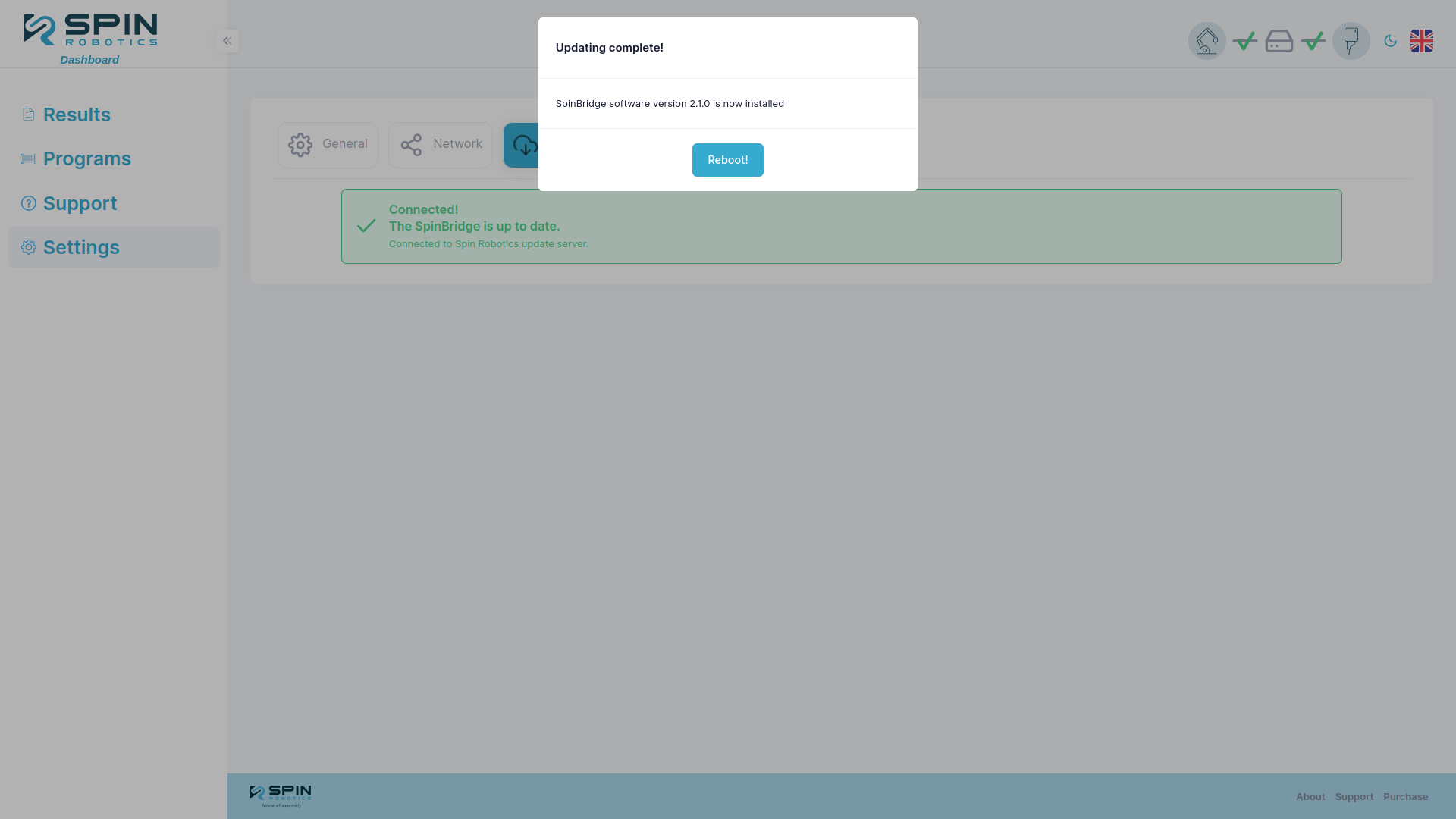
Now wait for the update to complete. You may lose connection to the bridge, this is normal and it will reconnect when the update is done and a reboot button is shown.